Year-End Home Office Refresh Checklist: Laptop, Keyboard, Mouse and Monitor

On this page
The last weeks of the year are a good time to look at the desk you work at every day. A simple home office setup checklist helps you spot what is slow, worn out or just annoying, so you can fix it before the new year begins. This guide is for remote workers and students, and it covers the laptop, keyboard, mouse, monitor and the small extras around them.
Why a home office setup checklist is worth doing before the new year
Most of us add things to our desks one at a time. A laptop bought for college, a mouse picked up in a hurry, a monitor borrowed from the office. Over months, this adds up to a setup that works but is not quite comfortable or reliable. A checklist makes you review everything in one sitting instead of waiting for something to fail in the middle of a deadline or exam week.
For anyone planning a work from home setup in India, a few points matter in particular: power cuts and voltage fluctuations, limited desk space in smaller homes, and shared rooms where the desk doubles as a dining table. Keep these in mind as you go through the steps below.
Before you start, spend ten minutes on three questions:
- What slowed me down most this year: the laptop, the screen, or something smaller like a worn mouse?
- What will my workload look like next year: more video calls, bigger files, more studying or more multitasking?
- What can I fix with cleaning, settings or a small accessory, and what really needs replacing?
Step 1: Review your laptop honestly
Your laptop is the centre of the setup, so start there. Check the basics: how long it takes to start, whether it freezes when you keep several tabs and apps open, how much storage is left, and whether the battery still lasts through your normal work session. Back up important files before you change anything.
A few quick fixes are worth trying first:
- Uninstall apps you no longer use and clear out the downloads folder.
- Restart regularly and install pending system updates.
- Check that your storage is not almost full, because a nearly full drive can make a computer feel slow.
- Clean the vents and keyboard gently with a soft brush or cloth when the laptop is switched off.
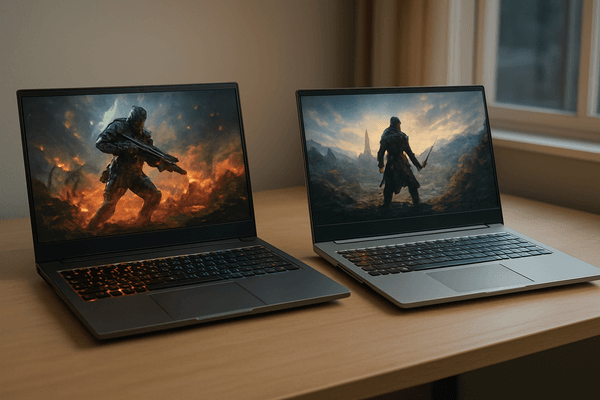
If the laptop still struggles with everyday work, it may be time to think about a replacement. For general office work, study and video calls, a Dell laptop such as  Dell DC15250 i5-1334U|DDR5 8 GB-RAM*1|512 GB NVME SSD| 15.6"FHD+120 Hz |Win11+Ms 2024 |KEYBOARD LIGHT| PLATINUM SILVER is the kind of configuration to look at: it lists an Intel Core i5-1334U processor, 8 GB of DDR5 RAM, a 512 GB NVMe SSD, a 15.6-inch Full HD display with a 120 Hz refresh rate, a keyboard light, and Windows 11 with Microsoft Office 2024. Compare a listing like this with what you actually do each day, rather than buying the biggest spec sheet.
Step 2: Sort out your laptop keyboard and mouse setup
Many people type and click on whatever came with the laptop. Using the built-in keyboard and trackpad for eight hours a day is possible, but it is not everyone's preference. A separate keyboard and mouse also let you place the laptop at a different position on the desk, for example next to an external screen.
For your laptop keyboard and mouse setup, go through this list:
- Check for sticky, worn or unresponsive keys. If several keys misbehave, an external keyboard is an easy fix.
- Decide between wired and wireless. Wired is simple to plug in and does not need pairing or charging, while wireless gives you a cleaner desk.
- Look at the layout. If you type a lot, a full-size layout with a number pad can help with spreadsheets and accounts work.
- Test your mouse for double clicks, drifting or a wheel that skips. These are signs it is time to replace it.
When you compare computer keyboards, think about how you work rather than chasing features. Students who write long assignments and office users who type all day usually care more about key feel and layout than extras. For a basic and straightforward pointing device, a wired option like 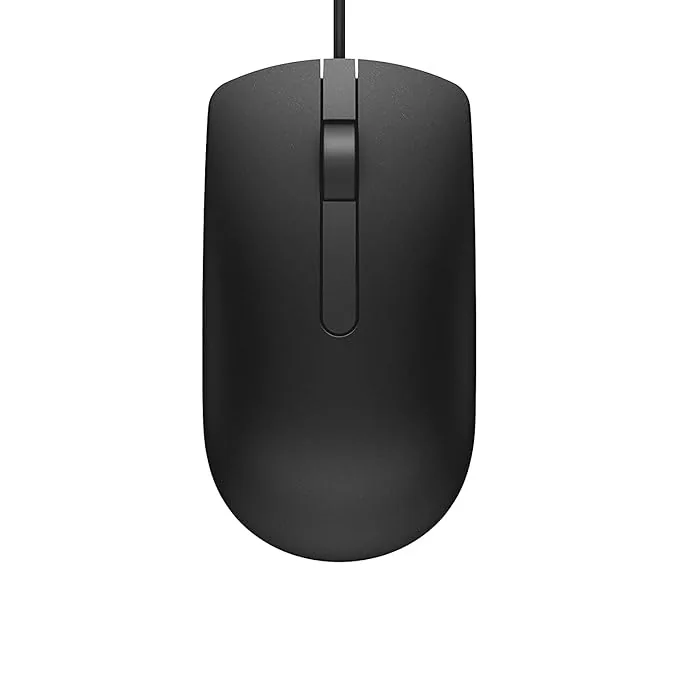 DELL WIRED MOUSE is easy to plug in and use, which suits a spare desk, a second workspace or a backup.
Step 3: Check your monitor and display
A laptop screen is fine for light use, but a larger display makes spreadsheets, documents and split-screen work easier. When you look at computer monitors, three things matter most:
- Size: Bigger screens give more room, but they need desk depth. Measure your desk first.
- Resolution: Full HD is a common choice for everyday work and study on screens of this size.
- Connections: Check which ports your laptop has and whether the monitor matches them, so you do not need extra adapters.
Also look at the simple things: set the brightness so it is not harsh in the room, keep the screen clean, and place it so that windows and lamps do not cause glare. Do not worry about exact numbers; adjust until it looks comfortable to you.
If you are tired of juggling a laptop and separate screen, an all-in-one PC is another option for a fixed desk. 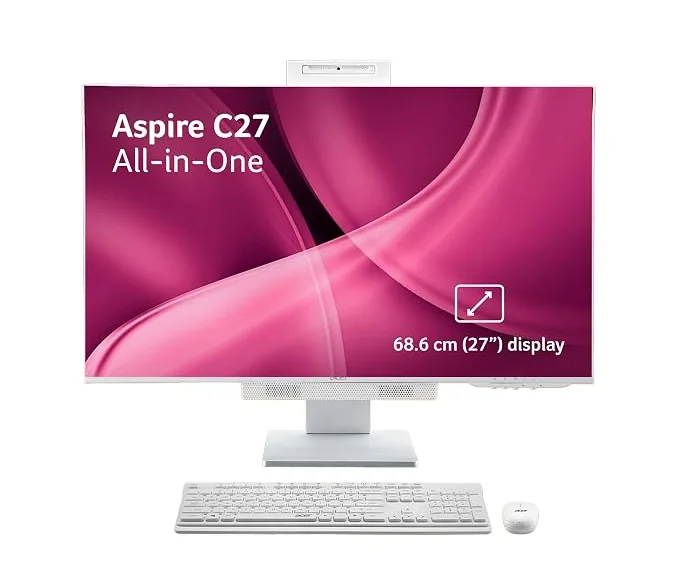 Acer ASPIRE 27 - UD-373SI-002 | Intel Core i5- 13420H |16GB-RAM| 512 GB Nvme SSD|FHD WEB CAMERA |Win11|MSO 2024|27" MONITOR|WHITE |BAG |, for instance, is an Acer all-in-one with a 27-inch Full HD display, a built-in FHD webcam, a 13th Gen Intel Core i5-13420H processor, 16 GB of RAM and a 512 GB NVMe SSD. The built-in webcam is handy for video calls, and there is one less device to place on your desk. The trade-off is that it stays in one place, so it suits people who always work at the same spot.
Step 4: Cover the office desk essentials and computer accessories
Once the main devices are sorted, look at the smaller items. This part of the computer accessories checklist is often ignored until something goes wrong. Here are the office desk essentials worth reviewing:
- Power: Check that cables are not frayed and that your power strip or surge protector is in good condition. Avoid overloading one socket.
- Cables and adapters: Keep the right charger, HDMI or other display cable, and a USB hub if your laptop has few ports.
- Storage: Keep a pendrive or external drive for backups, and test that your backups actually open.
- Audio: Check your headphones or speakers and microphone before your next call, not during it.
- Webcam: If your screen has no camera, or the image is poor, think about a separate one.
- Printing: If you print at home, check ink or toner levels so a cartridge does not run out before an important document.
- Desk and chair: Clear clutter, add enough light for reading, and make sure everything you use daily is within easy reach.
Buy only what solves a real problem you noticed during this review. A few well-chosen computer accessories do more for your daily routine than a drawer full of gadgets you rarely use.
Your quick year-end checklist and final thoughts
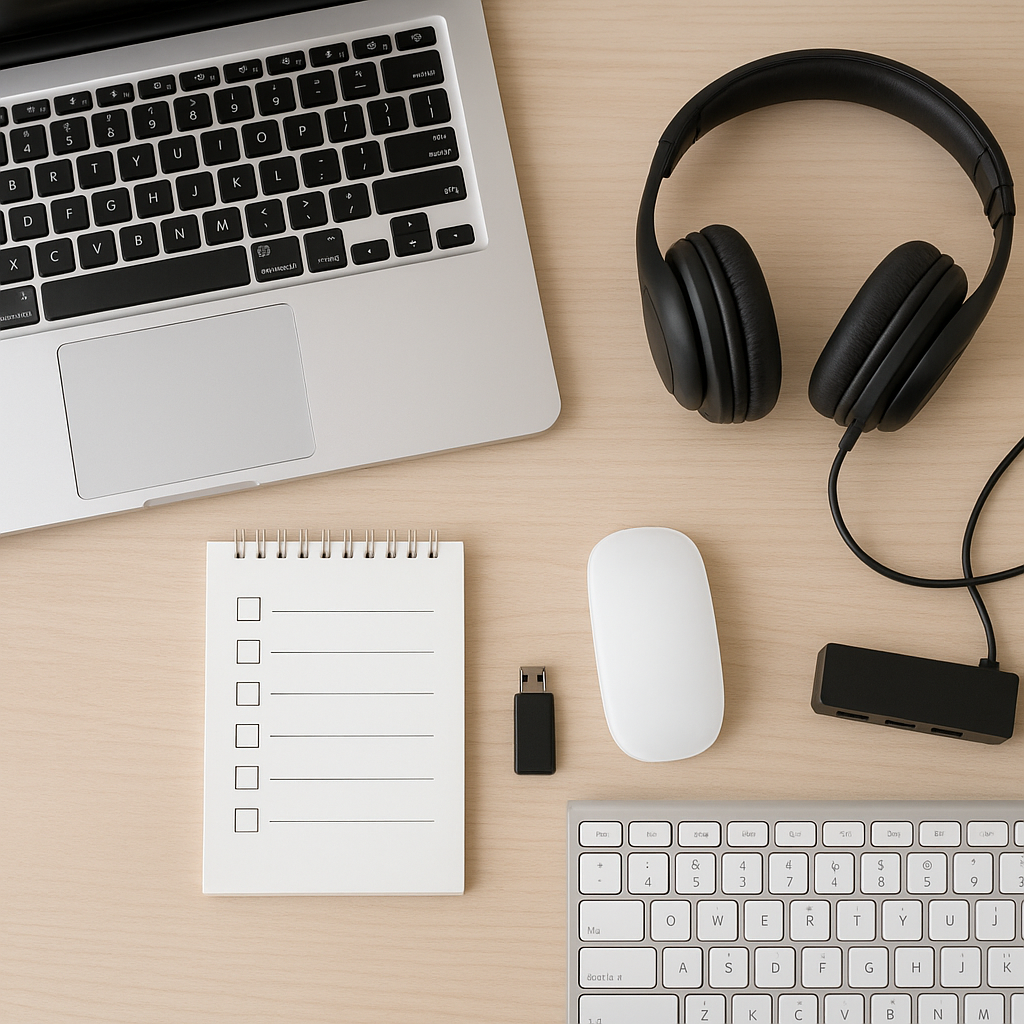
Print this list or save it on your phone, then tick things off over a weekend:
- Back up important files and clear unused apps.
- Update your system and review storage space.
- Test the laptop battery and charger.
- Check the keyboard and mouse for worn or faulty parts.
- Clean the screen, adjust brightness and reduce glare.
- Check cables, power strip and ports.
- Test headphones, microphone and webcam.
- Refill or replace printer consumables if needed.
- Write down anything you want to upgrade next year, in order of importance.
A year-end refresh does not have to mean spending a lot. For many people, a clean-up and a small replacement, like a new mouse or a better keyboard, is enough. If your laptop or display is the real bottleneck, take your time to compare configurations and match them to the work you actually do. Start the new year with a desk that helps you focus rather than slows you down.