By Admin··10 min read
Dual Monitor Setup Guide: Productivity Benefits and Practical Setup Considerations

On this page
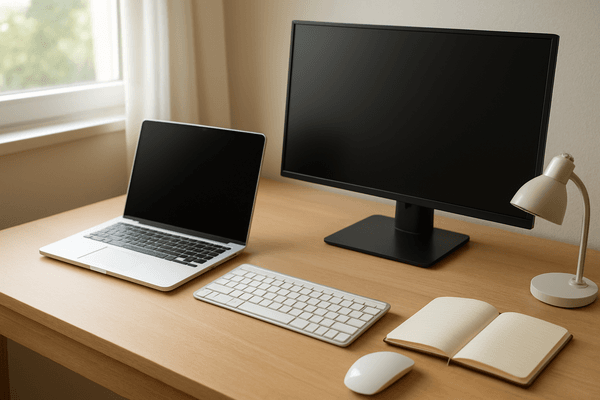
One screen is rarely enough for serious work. Whether you are a developer context-switching between a code editor and a terminal, a designer comparing a reference and a working file, or a professional managing spreadsheets alongside email, a second monitor changes how you work in ways that are difficult to fully appreciate until you have tried it.
This guide walks through the practical case for dual monitors, what to consider before buying, how to arrange your screens correctly, and the hardware details that matter when setting up a two-display system.
Why a Second Monitor Improves How You Work
The core benefit of a dual monitor setup is reduced task-switching. With a single screen, moving between applications means constantly minimising, maximising, and alt-tabbing. Each switch carries a small cognitive cost and a time cost. Across a full working day, those costs accumulate.
A second screen eliminates most of that friction. Reference material, communication apps, or monitoring dashboards stay permanently visible on one screen while active work happens on the other. The result is fewer interruptions to your working focus and faster completion of tasks that require information from multiple sources simultaneously.
Some research have found that dual monitors reduce task completion time and errors compared to single-screen setups for most knowledge work categories. The productivity gain is most pronounced for tasks requiring reference material alongside active work.
Who Benefits Most from Dual Monitors
Software Developers and Engineers
Developers arguably gain more from dual monitors than any other professional group. Code on one screen, documentation or a browser on the other, is the minimum baseline. Many developers use one screen for the IDE, one for terminal output and testing, and would happily use a third if desk space allowed. The constant need to cross-reference, test, and debug makes single-screen work genuinely inefficient for this group.
Finance and Data Professionals
Anyone working in Excel, financial modelling, or data analysis benefits from having a spreadsheet or database open on one screen while reports, dashboards, or reference data occupy the other. Pivot tables that need to be seen alongside raw data, or financial models that reference external sources, become significantly easier to manage across two displays.
Content Writers and Editors
Writers working from briefs, researchers referencing sources, and editors comparing drafts all benefit from permanent side-by-side visibility. A browser with research open on one screen and a document open on the other removes the constant toggling that breaks writing flow.
Creative Professionals
Video editors, graphic designers, and animators often use one screen for the primary editing workspace and a second for the timeline, asset library, or client brief. This is standard practice in professional creative production environments.
Choosing the Right Second Monitor
Not every monitor pairing works well together. When adding a second screen to an existing setup, or building a fresh dual-monitor configuration, a few factors determine how well the two displays function as a unified workspace.
Matching Size and Resolution
The ideal dual monitor setup uses two identical monitors. When that is not possible, matching the resolution and display technology matters more than matching the exact model. Pairing a 1080p IPS panel with a 1440p IPS panel creates a visible brightness and colour shift between screens, which is distracting during extended use.
For a consistent dual-monitor experience, the computer monitors section at Swastik includes options across size, resolution, and panel type from Acer, BenQ, Dell, LG, Samsung, ViewSonic, and Lenovo.
Panel Type
IPS panels offer better colour accuracy and wider viewing angles, which matters in a dual-monitor setup because you are often looking at the secondary screen at a slight angle. TN panels are cheaper but show colour shift at off-angles. VA panels sit between the two. For productivity dual-monitor setups, IPS is the recommended default.
Response Time and Refresh Rate
For professional and creative work, 60Hz is entirely sufficient. If your primary screen is a gaming monitor running at 144Hz or 165Hz, the secondary productivity screen does not need to match that refresh rate unless you plan to game across both.
Connectivity
Check that your computer has the output ports needed to drive two monitors. Most modern systems support HDMI and DisplayPort outputs simultaneously. If your graphics card or laptop has only one output of each type, verify that both ports can be active at the same time, which is not always the case on older integrated graphics hardware.
Monitor Panel Types for Dual Setups
|
Panel Type |
Viewing Angle |
Best For |
|
IPS |
Wide, consistent colour |
Productivity, design, general use |
|
VA |
Good contrast, moderate angle |
Media, mixed use |
|
TN |
Narrow, colour shift off-axis |
Budget-only, single-screen gaming |
Physical Arrangement: Getting Ergonomics Right
How you position two monitors affects neck and eye strain significantly over long working sessions. Getting the physical arrangement right matters as much as choosing the right monitors.
Side by Side - Equal Priority
The most common arrangement is two monitors placed side by side at equal height. Both screens are centred relative to your seating position with the join between monitors sitting directly in front of you. This works well when you alternate between screens frequently and neither screen is definitively primary.
Primary and Secondary Arrangement
If one screen is used heavily while the other is reference-only, place the primary screen directly in front of you and the secondary screen at a slight angle to the left or right. This keeps your neck in a neutral forward position for most of your working time and reduces cumulative strain from head rotation.
Monitor Stands and Arms
Standard monitor stands leave limited flexibility for height adjustment. A dual monitor arm or two single monitor arms allow both screens to be set at precisely the same height, tilted to match your eye level, and repositioned without tools when needed. This makes a larger ergonomic difference than most people expect before trying it.
Eye Level and Distance
The top of each monitor should sit at or just below eye level when you are seated with your back straight. Screen distance should allow you to read text without leaning forward, typically 50 to 70 centimetres from your eyes. Both screens should be at the same distance from your seated position to avoid constant refocusing.
OS Settings: Configuring Dual Monitors in Windows
Windows handles multi-monitor setups through the Display Settings panel. Right-clicking the desktop and selecting Display Settings shows all connected monitors. From here you can:
- Set the arrangement of monitors to match their physical position on your desk. Drag the monitor icons to reflect whether your second screen is to the left or right of your primary.
- Choose which monitor is your primary display. The taskbar, system tray, and app launch defaults go to the primary monitor.
- Set the resolution and refresh rate independently for each screen.
- Select the display mode: Extend these displays for a true dual workspace, or Duplicate for mirroring.
- Enable or disable individual monitors if you need to switch between single and dual monitor modes.
Windows also supports keyboard shortcuts for moving windows between monitors. Pressing Windows key + Shift + Left Arrow or Right Arrow moves the active window to the adjacent monitor without dragging.
Practical Workflow Tips for Dual Monitor Users
Assign Roles to Each Screen
The most effective dual monitor users give each screen a defined role rather than treating both screens as interchangeable. Decide before you start working which screen handles active production tasks and which handles reference, communication, or monitoring. Keeping to this discipline prevents the setup from becoming two cluttered screens instead of one.
Use Virtual Desktops Alongside Dual Monitors
Windows virtual desktops work alongside physical dual monitor setups. You can have multiple virtual desktops, each with its own application arrangement across both screens. This is particularly useful for separating work projects, keeping personal and professional applications in different virtual desktop environments.
Keyboard Shortcuts Worth Learning
Windows key + Left/Right Arrow snaps the active window to half the screen. Pressing again moves it to the other monitor. Windows key + Up Arrow maximises the window. These shortcuts become essential for quickly organising windows across two screens without touching the mouse. For a complete list of Windows keyboard shortcuts, Microsoft's official shortcut reference covers both standard and multi-display specific shortcuts.
Laptop Users: Extending to a Second Screen
Laptop users gain particular value from a second monitor. A laptop screen is small by desktop standards, and the compromised ergonomics of laptop display angles make sustained work uncomfortable. Connecting a 24 or 27-inch external monitor and using the laptop screen as a secondary display immediately improves both ergonomics and workspace.
Most modern laptops including HP, ASUS, Acer, Lenovo, Dell, and MSI models support dual-screen output through HDMI. USB-C with DisplayPort Alt Mode is increasingly common on slim laptops. Connecting to a good external monitor transforms a portable laptop into a productive desk setup when at home or in the office.
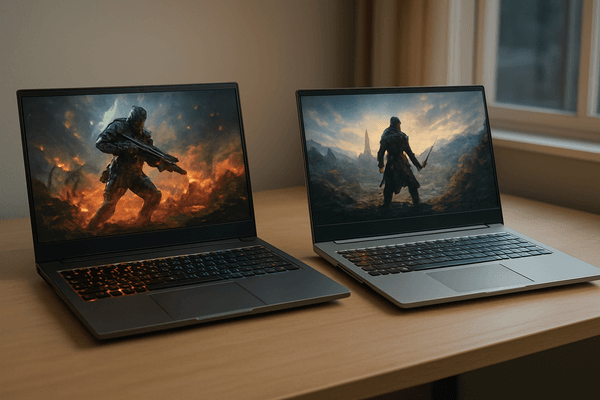
For gaming laptops that double as workstations, connecting to an external Dell monitor or Samsung monitor via HDMI gives the laptop's discrete GPU a chance to display at higher resolutions without the limitations of the laptop panel.
Desktop vs Laptop for Dual Monitor Use
|
Consideration |
Desktop |
Laptop |
|
Output ports |
Multiple via GPU |
1 to 2, check model specs |
|
Primary screen quality |
Chosen separately |
Fixed, manufacturer chosen |
|
Upgrade flexibility |
Easy, GPU swap |
Limited by chassis |
|
Portability |
Fixed at desk |
Setup packs away with laptop |
The Cost of a Proper Dual Monitor Setup
The total cost of a dual monitor setup depends primarily on the monitor you choose as a second screen. If you already own one monitor and are adding a second, a 24-inch 1080p IPS panel starts from approximately Rs 8,000 to Rs 12,000. A matched pair of quality 27-inch monitors lands between Rs 25,000 and Rs 45,000 depending on the panel and features.
The Acer monitors, LG monitors, and ViewSonic monitors at Swastik cover the range from entry-level 24-inch options to premium 27-inch 1440p panels suited to professional dual-monitor configurations.
Beyond the monitors, a monitor stand or dual arm costs between Rs 1,500 and Rs 6,000 depending on build quality and load rating. An HDMI or DisplayPort cable for the second monitor adds Rs 300 to Rs 800. The full investment for a properly configured dual monitor desk setup is therefore manageable for most professional budgets.
When a Single Ultrawide Is Worth Considering Instead
Ultrawide monitors at 34 inches and above offer a single-panel alternative to dual monitors. They eliminate the bezel gap between two screens, which some users find visually disruptive. However, most productivity applications are designed around standard aspect ratios. Ultrawides work well for video editing and gaming but can feel awkward for document work where the extra horizontal width goes unused.
For most professional and development use cases, two standard monitors outperform a single ultrawide for flexibility, ergonomic adjustment, and application organisation. The dual-monitor route also allows each screen to be individually positioned, angled, and replaced independently.
A dual monitor setup is one of the highest-return investments you can make in a desktop workspace. The cost of a second quality monitor is modest relative to the reduction in task-switching friction it delivers across a working day. Getting the physical arrangement right, configuring the OS settings correctly, and assigning clear roles to each screen turns two displays into a genuinely unified workspace rather than two screens with identical content.
Browse the full monitor range at Swastik Online Store to find matched pairs or complementary screens for your existing setup. The BenQ monitors and Lenovo monitors are particularly well-suited to professional dual-monitor configurations where colour consistency and ergonomic flexibility are priorities.