Desktop PC Buying Guide for Home and Small Office: Tower, Mini or All-in-One?

On this page
Buying your first computer for the house or shop can feel confusing, because desktops come in very different shapes. This desktop PC buying guide India shoppers can follow starts with a simple idea: pick the format that suits your space, then match the processor, RAM and SSD to what you actually do every day.
Desktop PC buying guide India: tower, mini or all-in-one?
Before comparing specs, decide on the shape. Each format has clear strengths.
Tower desktops
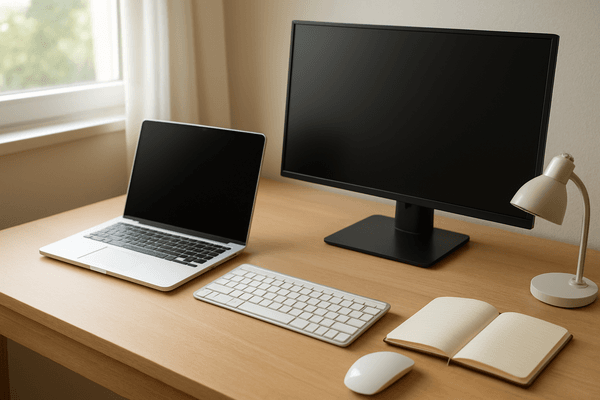
A tower is the traditional box that connects to a separate monitor, keyboard and mouse. It usually offers more room for future upgrades, such as adding storage or more RAM, and you can reuse a monitor you already own. The trade-off is more cables and more desk space.
Mini PCs
A mini PC is a very compact box that can sit behind a monitor or on a shelf. It suits light work and tidy desks. Because of the small size, upgrade options are often limited, so choose the RAM and SSD you need at the time of purchase.
All-in-one PCs
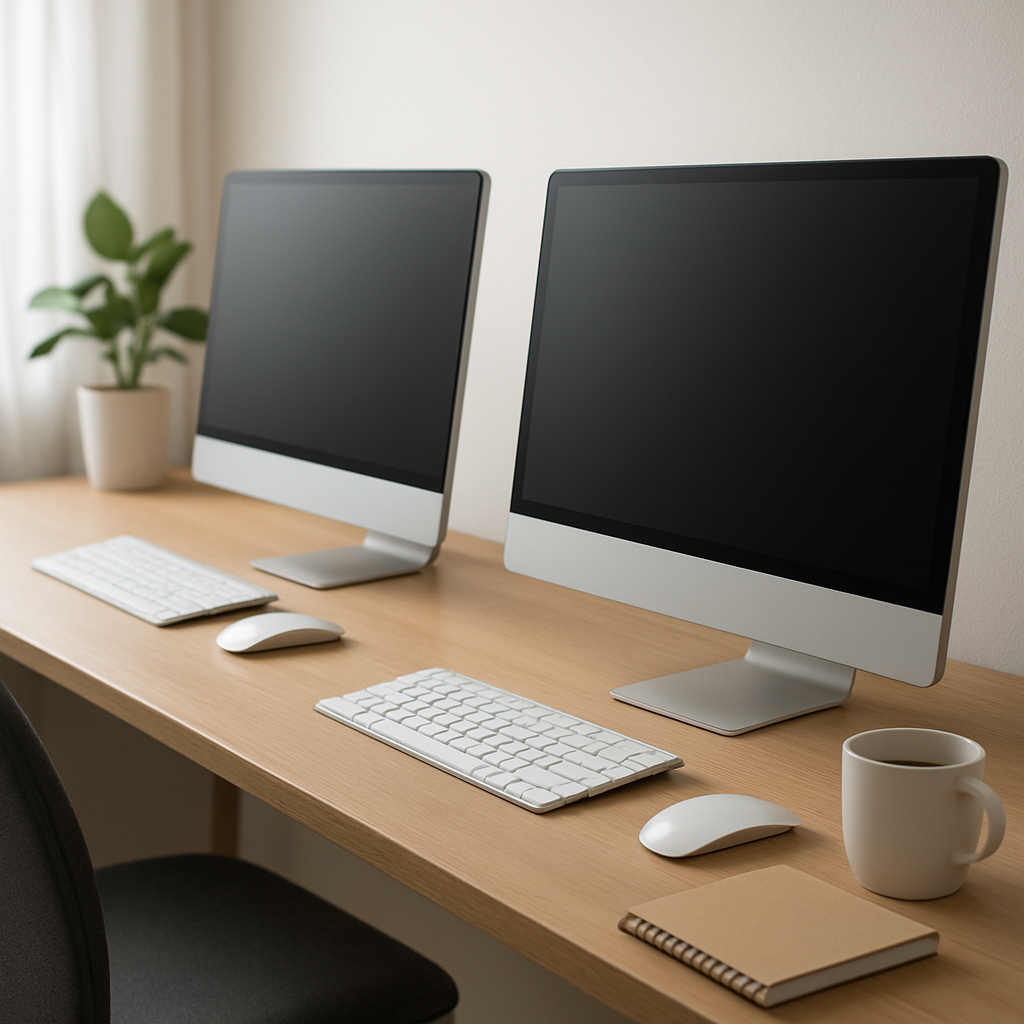
An all-in-one PC builds the computer into the back of the screen. You get a clean setup with fewer cables, and many models include a webcam, which is handy for video calls. The downside is that if the screen or internal parts have a problem, the whole unit is affected, and upgrades are usually limited.
Match processor, RAM and SSD to your tasks
Specs matter less than whether they fit your work. Here is a plain-language starting point for everyday use. These are general guidelines, not guarantees, so always read the full specification of the model you are considering.
| What you do | Processor class | RAM | SSD |
|---|---|---|---|
| Browsing, online classes, documents | Intel Core i3 or similar | 8 GB | 256 GB to 512 GB |
| Many browser tabs, video calls, spreadsheets | Intel Core i5 or Ryzen 5 class | 16 GB | 512 GB |
| Light photo editing, large files, heavy multitasking | Core i5 or Ryzen 5 and above | 16 GB or more | 512 GB to 1 TB |
The SSD is what makes a desktop feel quick when starting up and opening apps, so avoid models that rely only on an old hard drive. Most everyday desktops use integrated graphics, which is fine for office work, streaming and browsing, but not meant for demanding modern games.
If you want extra room to grow, a model such as 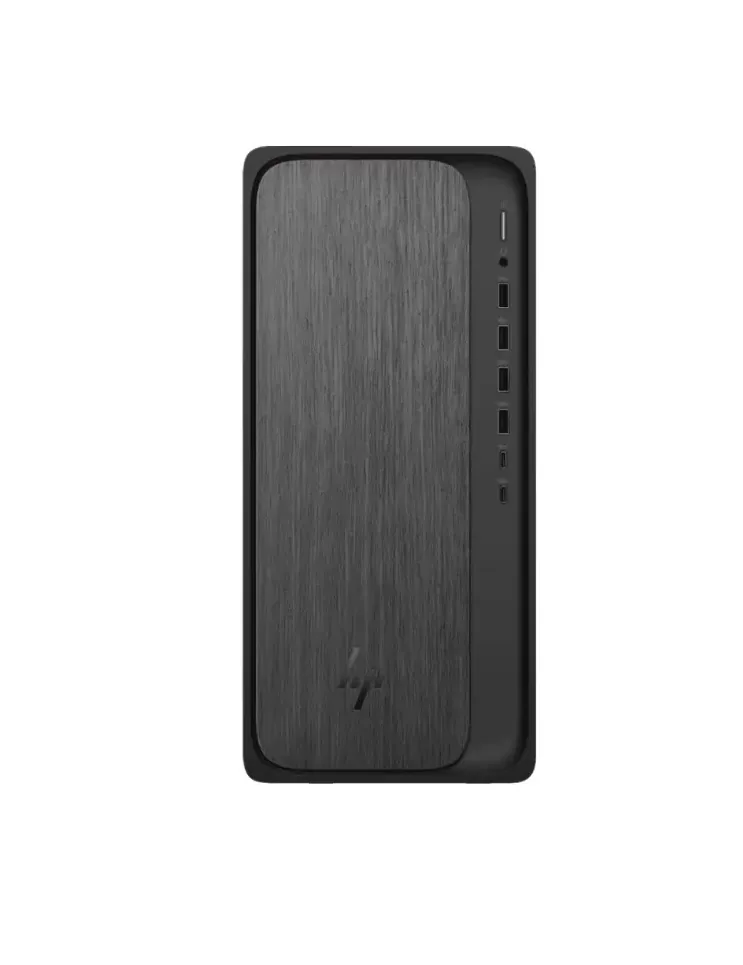 HP OmniDesk M02-0005IN | AMD Ryzen™ 5 8500G / 16 GB DDR5-5200 M T/s (1 x 16 GB) /1 TB PCIe® Gen4 NVMe™ M.2 SSD / AMD Radeon™ Graphics is listed with an AMD Ryzen 5 8500G processor, 16 GB of DDR5-5200 RAM and a 1 TB PCIe Gen4 SSD, with integrated AMD Radeon Graphics. That gives you a generous amount of memory and storage for a home tower.
Choosing the best desktop for home use
For most families, the best desktop for home use is one that handles homework, streaming, banking, video calls and light office work without fuss. A mid-range processor, 8 GB to 16 GB of RAM and a 512 GB SSD cover those tasks for most people.
If space is tight or you want a neat look in the living room, an all-in-one PC is worth a close look. For example, 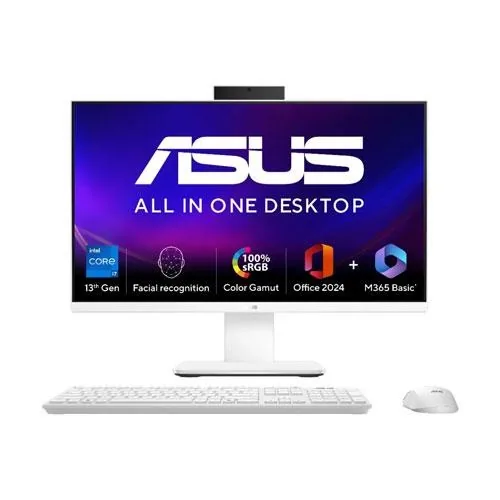 ASUS AIO V470 V470VA-KWPE005WS 27" / FHD / / 2.0M HD Cam / Intel / i5-13420H / UMA / / 16GB DDR5 / 1TB PCIE G4 SSD / Win 11 Home / Office + M365/ HDMI in & HDMI out / Wi-Fi 6E / WL KB + Mouse / White / 1Y is a 27-inch Full HD all-in-one with an Intel Core i5-13420H processor, 16 GB DDR5 RAM, a 1 TB PCIe Gen4 SSD and a webcam. A large screen like that suits shared family use, though you should check that the desk can fit it comfortably.
Also think about who uses the computer. Children's schoolwork and a parent's household accounts have very different needs, so choose for the busiest user.
A desktop for small office use
A desktop for small office use should be dependable first and flashy last. Think about all-day running, multitasking between email, accounting software and browser tabs, and how easy it is to keep several identical machines for staff.
- Processor: a Core i5 class chip gives comfortable headroom for office software.
- RAM: 16 GB helps when many apps and tabs are open together.
- Storage: a 512 GB SSD is a sensible baseline for documents and software.
- Form factor: towers are easier to repair and upgrade, which suits offices that keep machines for years.
An Acer desktop such as 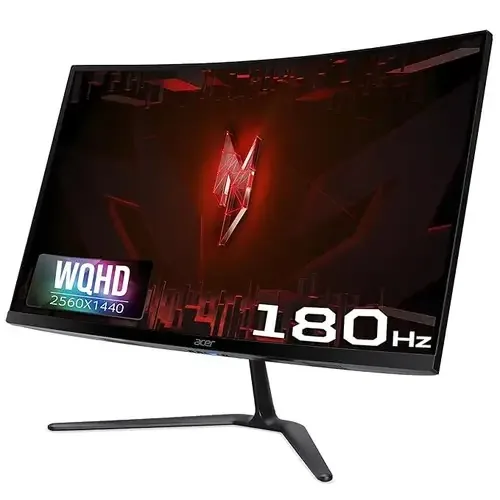 Acer VERITON M200 UD-30KSI-10W H610 - CORE i5 - 14400 |16GBDDR4 | 512GB SSD | INTEL UHD GRAPHICS | E SHELL| BLACK | 22" MONITOR fits this brief. It is described as a heavy-duty corporate desktop with a 14th Gen Intel Core i5-14400 processor, 16 GB DDR4 RAM, a 512 GB SSD and Intel UHD Graphics in a black tower.
Dell desktop vs HP desktop: how to compare fairly
Many buyers end up weighing a Dell desktop against an HP desktop, and both brands make solid options for homes and offices. Rather than picking by name, compare them like for like.
- Specs: processor generation, RAM type and size, and SSD capacity.
- Included software: check whether Windows 11 and Microsoft Office are bundled, and which versions.
- Display: some listings include a monitor, others do not. Confirm the screen size.
- Warranty: read the terms stated by the manufacturer on the product page.
- Ports and connectivity: make sure there are enough USB ports for your printer, keyboard and other devices.
As an example of a bundle, 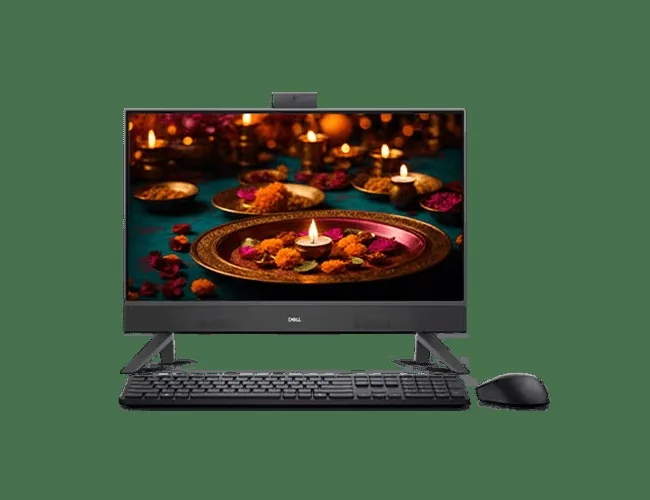 Dell EC24250 INTEL CORE 3-100U|8GB-RAM|512 GB NVME SSD |24 INCH"Monitor|Win11+Ms Office2024 BLACK 3YEARS WARRANTY is listed with an Intel Core 3-100U processor, 8 GB RAM, a 512 GB NVMe SSD, a 24-inch monitor, Windows 11 with Microsoft Office 2024 and a 3-year warranty. Lenovo desktop ranges are also worth checking if you want more choice, and the same comparison checklist applies.
Practical tips before you buy
- Measure your space. Check desk size for an all-in-one, or the gap for a tower.
- Do not overspend on power you will not use. A light-use home machine such as
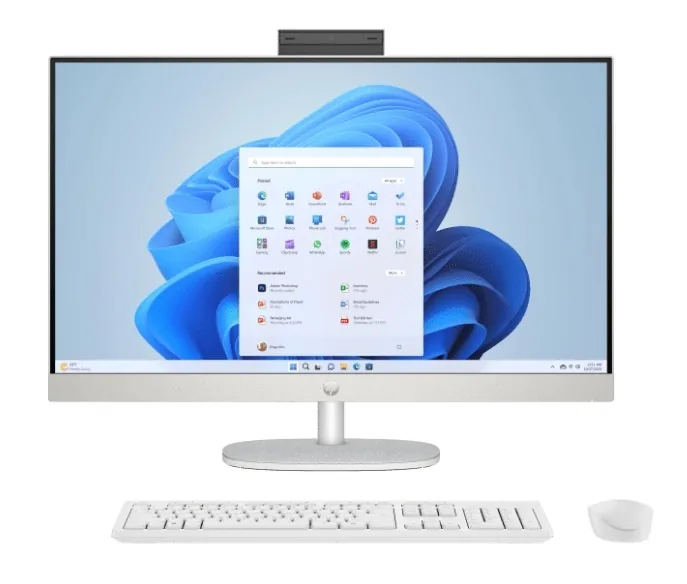 HP 24 All-in-One PC - 24-CR0905IN | intel i3-1315U / 8GB Ram / 512GB SSD / 24" FHD / Back Light / Win 11 / Mso 24/ Silver (MXXXX), a 24-inch Full HD all-in-one with an Intel Core i3-1315U, 8 GB RAM and a 512 GB SSD, matches basic everyday tasks.
- Check what is in the box. Confirm whether a monitor, keyboard and mouse are included.
- Plan for backups. Keep important files on an external drive or a cloud service.
- Think two to three years ahead. If your needs may grow, choose 16 GB of RAM or a tower with upgrade options.
- Use genuine software. Choose a PC with a licensed Windows version rather than relying on unsafe alternatives.
Conclusion
Start with the format that suits your space: a tower for upgrades and value, a mini PC for compact setups, or an all-in-one for a tidy look. Then match the processor, RAM and SSD to your daily tasks using the table above. If you compare brands on real specifications, included software and warranty terms, you will end up with a desktop that fits your home or small office for years to come.