By Admin··25 min read
The Complete Guide to Computer Monitors in India (2026): Everything You Need to Know Before Buying

On this page
Buying a computer monitor in 2026 feels different from even two years ago. The technology has moved fast. Refresh rates that were once reserved for premium gaming displays have trickled into budget office monitors. Panel types that used to be exclusive to professional editing suites are showing up in everyday models. And the price gaps between "good enough" and "genuinely excellent" have shrunk dramatically.
But here is the problem. More options do not automatically mean easier decisions. Walk into any electronics store or browse any online catalog, and you will find yourself staring at dozens of monitors from ten different brands, each throwing around numbers like 144Hz, 1ms, IPS, VA, sRGB, HDMI 2.1, and FreeSync Premium. What do these numbers actually mean for your daily experience? Which ones matter for your specific use case, and which ones are marketing noise?
This guide answers those questions. Whether you are setting up a home office, building a competitive gaming station, launching a creative career, or simply looking for a solid display that does not break the bank, this is the only monitor resource you need in 2026.
Understanding Monitor Panel Types: The Foundation of Every Purchase Decision
Every monitor recommendation in the world starts with panel technology. The panel is the actual screen behind the glass, and the type of panel determines your color accuracy, viewing angles, contrast ratios, and response times. There are three major panel types available in 2026, and each has genuine strengths and real limitations.
IPS (In-Plane Switching) Panels
IPS panels deliver the widest viewing angles of any LCD technology. You can look at an IPS screen from almost any position and the colors remain consistent. They also offer excellent color accuracy out of the box, which is why they dominate the creative professional and office segments.
The trade-off? IPS panels historically struggled with contrast ratios. Black tones on an IPS display look more like dark grey compared to VA panels. However, this gap has narrowed significantly with newer IPS generations. Response times on modern IPS panels have also improved to the point where they compete directly with TN panels for gaming.
Best for: Office work, content creation, photo editing, general-purpose use, and gaming where color accuracy matters more than deep blacks.
You will find IPS panels across brands like Dell, LG, Lenovo, and HP. The AOC 24" IPS Panel Monitor (24B1XHS) at Rs 8,500 is a solid entry point for anyone exploring IPS technology for the first time.
VA (Vertical Alignment) Panels
VA panels are the contrast ratio champions. They deliver the deepest blacks and highest contrast ratios of any mainstream LCD technology, typically 3000:1 or higher compared to 1000:1 on most IPS panels. This makes them ideal for dark room viewing, movie watching, and games with atmospheric lighting.
The downside? VA panels have narrower viewing angles than IPS. Colors can shift slightly when viewed from the side, which matters in multi-monitor setups or collaborative work environments. Response times are also typically slower than IPS panels, though modern VA gaming monitors have largely addressed this with overdrive technologies.
Best for: Media consumption, immersive single-player gaming, dark room setups, and users who prioritize contrast over viewing angles.
The AOC 23.6" Curved VA Panel Monitor (C24B1H) at Rs 8,750 combines VA panel benefits with a curved form factor for an immersive viewing experience.
TN (Twisted Nematic) Panels
TN panels were once the default choice for budget monitors and competitive gaming. They offer the fastest response times, often as low as 1ms, which eliminates motion blur in fast-paced games. They are also the most affordable panel type.
However, TN panels have the poorest viewing angles and color accuracy. Colors wash out noticeably when viewed from even slight angles, and the overall image quality falls behind both IPS and VA alternatives. In 2026, the price gap between TN and IPS has narrowed to the point where TN panels are becoming increasingly irrelevant for most buyers.
Best for: Budget-constrained competitive gamers who prioritize raw response time above everything else.
Panel Type Comparison Table
|
Feature |
IPS |
VA |
TN |
|
Viewing Angles |
178 degrees (excellent) |
160-178 degrees (good) |
140-160 degrees (average) |
|
Color Accuracy |
Excellent |
Good |
Average |
|
Contrast Ratio |
1000:1 (standard) |
3000:1+ (excellent) |
1000:1 (standard) |
|
Response Time |
1-5ms (good) |
4-8ms (average) |
1ms (excellent) |
|
Black Levels |
Average |
Excellent |
Average |
|
Price Range |
Mid to Premium |
Budget to Mid |
Budget |
|
Best Use Case |
Office, Creative, Gaming |
Media, Immersive Gaming |
Competitive eSports |
Monitor Sizes: Finding Your Perfect Screen Real Estate
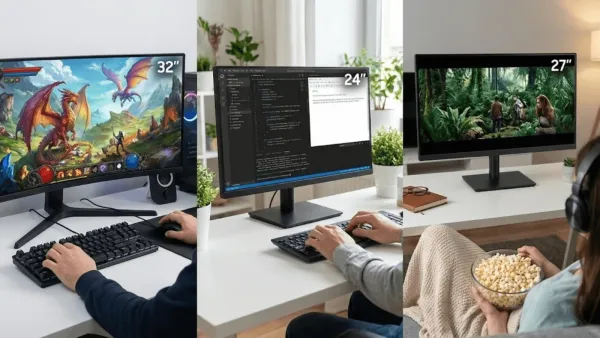
Monitor size is the second most impactful decision after panel type. The right size depends on your desk space, viewing distance, and primary use case.
22 to 24-Inch Monitors
The 22 to 24-inch range remains the most popular segment in India, and for good reason. These monitors fit comfortably on standard desks, work well at arm's length viewing distance, and deliver Full HD (1920 x 1080) resolution without any scaling issues. Text is sharp, icons are properly sized, and you do not need a powerful graphics card to drive the display.
This size is ideal for office work, student desks, compact setups, and budget-conscious buyers. The Samsung 24" FHD Monitor (LS24R350FHWXXL) and the HP 24" Monitor (24 MH) are excellent choices in this range, offering reliable brand quality with features that match most everyday needs.
For gaming at this size, the AOC 24" Gaming Monitor (24G2E5) provides a smooth experience with gaming-optimized refresh rates and response times.
27-Inch Monitors
The 27-inch sweet spot has become the default recommendation for anyone who can afford the step up. At this size, Full HD starts looking slightly soft, which is why 27-inch monitors pair best with QHD (2560 x 1440) resolution. The extra screen space makes a tangible difference in productivity, allowing you to comfortably view two documents side by side without squinting.
For gaming, 27-inch displays are the competitive standard. They are large enough to be immersive but small enough that your eyes can track action across the entire screen without excessive head movement.
The BenQ GW2780 27" Ultra Slim Monitor is a standout option that combines slim bezels, built-in speakers, and BenQ's proprietary Brightness Intelligence Technology that adjusts screen brightness based on ambient lighting. The Dell 27" Monitor (S2721HN) delivers Dell's legendary build quality with a three-sided bezel-less design.
The AOC 27" Full HD Gaming Monitor (27B2H) at Rs 11,000 is one of the most affordable 27-inch IPS options available, making it a strong value pick for buyers stepping up from 24-inch displays.
32-Inch and Above
Monitors at 32 inches and larger are specialized tools. They work brilliantly for video editing timelines, spreadsheet-heavy financial work, and immersive gaming. At this size, 4K (3840 x 2160) resolution becomes almost mandatory since Full HD at 32 inches produces visibly soft text and images.
The ViewSonic VX3276-2K 32" Monitor hits the right balance with QHD resolution on a large panel, giving you sharp visuals without demanding the graphics horsepower that 4K requires. For budget large-screen options, the Zebronics 32" Curved LED Monitor with built-in speakers offers an affordable entry into the big screen category.
Monitor Size Recommendation Guide
|
Screen Size |
Ideal Resolution |
Viewing Distance |
Best For |
Price Range (India) |
|
22" |
FHD (1080p) |
50-65 cm |
Compact desks, students |
Rs 6,000 - Rs 10,000 |
|
24" |
FHD (1080p) |
55-70 cm |
Office, gaming, general |
Rs 8,000 - Rs 15,000 |
|
27" |
QHD (1440p) |
60-80 cm |
Productivity, gaming |
Rs 12,000 - Rs 30,000 |
|
32" |
QHD/4K |
70-100 cm |
Editing, finance, immersive |
Rs 18,000 - Rs 50,000 |
|
34" Ultrawide |
UWQHD (3440x1440) |
70-100 cm |
Multi-tasking, creative |
Rs 25,000 - Rs 60,000 |
Resolution Explained: Why More Pixels Are Not Always Better
Resolution is the number of pixels your monitor can display. More pixels mean sharper images and crisper text. But resolution needs to match your screen size, viewing distance, and the graphics card powering it.
Full HD (1920 x 1080)
Full HD remains the king of value. At 24 inches and below, it delivers perfectly sharp text and images. It demands minimal GPU power, which means even integrated graphics can handle it smoothly. Every streaming service, game, and application supports it natively. For most people in India, a Full HD monitor covers 90% of computing needs without any compromise.
QHD (2560 x 1440)
QHD, sometimes called 2K, offers 77% more pixels than Full HD. The jump in clarity is immediately noticeable on 27-inch and larger screens, especially for text-heavy tasks like coding, writing, and spreadsheet work. Gaming at QHD requires a mid-range dedicated GPU (like an RTX 4060 or equivalent), but the visual improvement over Full HD is substantial.
4K Ultra HD (3840 x 2160)
4K packs four times the pixels of Full HD. On a properly sized monitor (27 inches and above), 4K delivers stunning clarity for photo editing, video production, and high-end content consumption. The catch? Windows scaling can be finicky, text in older applications may appear tiny, and you need a powerful GPU for gaming at native 4K resolution.
Resolution vs Screen Size Matrix
|
Resolution |
22" PPI |
24" PPI |
27" PPI |
32" PPI |
Sharpness Verdict |
|
FHD (1080p) |
100 |
92 |
82 |
69 |
Sharp at 22-24", acceptable at 27", soft at 32" |
|
QHD (1440p) |
134 |
122 |
109 |
92 |
Excellent at 24-27", good at 32" |
|
4K (2160p) |
200 |
184 |
163 |
138 |
Overkill at 22-24", ideal at 27-32" |
PPI = Pixels Per Inch. Higher PPI means sharper text and images. Anything above 90 PPI is considered comfortable for desktop use at arm's length.
Refresh Rate and Response Time: Do You Actually Need 144Hz?
These two specifications generate more confusion than any other monitor metric. Let us clear that up.
Refresh Rate (Measured in Hz)
Refresh rate tells you how many times per second the monitor redraws the screen. A 60Hz monitor refreshes 60 times per second. A 144Hz monitor refreshes 144 times per second. Higher refresh rates produce smoother motion, which is most noticeable when scrolling web pages, moving windows, and playing games.
60Hz is perfectly adequate for office work, web browsing, video watching, and casual computing. If your primary tasks involve documents, spreadsheets, and email, paying extra for higher refresh rates offers minimal benefit.
75Hz to 100Hz is the sweet spot for everyday users who want noticeably smoother scrolling and cursor movement without the premium pricing of gaming monitors. The HP 524sa IPS Monitor at 100Hz is a perfect example of this category.
144Hz is the minimum standard for competitive gaming. The difference between 60Hz and 144Hz is immediately visible even to non-gamers. Once you experience 144Hz, going back to 60Hz feels sluggish. Most mid-range gaming monitors in 2026 offer 144Hz or higher.
165Hz, 240Hz, and beyond offer diminishing returns. The jump from 60Hz to 144Hz is dramatic. The jump from 144Hz to 240Hz is subtle and primarily benefits professional eSports players with the reflexes and hardware to take advantage of it. The AOC 24G2Z 240Hz Gaming Monitor at Rs 17,200 targets this competitive segment with an incredible 0.5ms response time.
Response Time (Measured in Milliseconds)
Response time measures how quickly a pixel can change from one color to another. Lower response times mean less motion blur and ghosting. However, the way manufacturers measure response time varies widely, making direct comparisons tricky.
GtG (Grey to Grey) is the most common measurement. A 5ms GtG response time is fine for office use and casual gaming. A 1ms GtG response time is ideal for competitive gaming.
MPRT (Moving Picture Response Time) is an alternative measurement that some manufacturers use, which often produces lower numbers than GtG for the same panel. Always check which measurement method is listed when comparing monitors.
For everyday use, anything under 8ms is perfectly smooth. For gaming, target 5ms or lower. For competitive eSports, 1ms is the gold standard.
Refresh Rate Guide by Usage
|
Usage Type |
Recommended Refresh Rate |
Why This Matters |
|
Office Work |
60-75Hz |
No visible benefit above 75Hz for documents and spreadsheets |
|
General Computing |
75-100Hz |
Noticeably smoother scrolling and cursor movement |
|
Casual Gaming |
100-144Hz |
Smooth gameplay in most genres |
|
Competitive Gaming |
144-240Hz |
Frame advantage in fast-paced shooters and racing games |
|
Professional eSports |
240Hz+ |
Marginal gains matter at tournament level |
Adaptive Sync: FreeSync vs G-Sync
Screen tearing happens when your GPU sends frames faster or slower than your monitor can display them. The result is a visible horizontal line where two frames overlap. Adaptive sync technology eliminates this by synchronizing your GPU's frame output with your monitor's refresh rate.
AMD FreeSync is free and built into most modern monitors. It works with AMD GPUs natively and is also compatible with most NVIDIA GPUs (labeled as "G-Sync Compatible"). FreeSync Premium adds low framerate compensation (LFC) and a minimum 120Hz requirement.
NVIDIA G-Sync requires a dedicated hardware module in the monitor, which adds to the cost. G-Sync monitors tend to be more expensive but offer slightly more consistent performance, especially at lower frame rates.
The practical advice: If you have an AMD GPU, buy a FreeSync monitor. If you have an NVIDIA GPU, any FreeSync Premium monitor will work well. Only invest in a dedicated G-Sync monitor if you are building a high-end rig where you want guaranteed tear-free performance across every scenario.
Most monitors available at Swastik Online Store in 2026 support FreeSync as a baseline, with many carrying FreeSync Premium certification.
Connectivity: HDMI, DisplayPort, USB-C, and What You Actually Need
Monitor connectivity is straightforward once you know what each port does.
HDMI is the universal standard. HDMI 2.0 supports 4K at 60Hz and 1080p at up to 240Hz. HDMI 2.1 adds 4K at 120Hz and variable refresh rate (VRR) support. Almost every monitor includes at least one HDMI port, and it is the default choice for connecting to laptops, desktops, and gaming consoles.
DisplayPort is the preferred connection for PC gaming. DisplayPort 1.4 supports 4K at 120Hz and 1080p at up to 240Hz with adaptive sync. It also supports daisy-chaining, which lets you connect multiple monitors through a single cable run. If your PC has a DisplayPort output, use it over HDMI for the best experience.
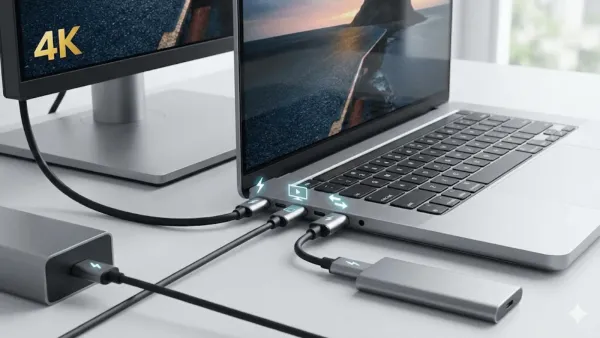
USB-C (with DisplayPort Alt Mode) is the modern convenience option. A single USB-C cable can carry video, data, and power simultaneously. This means you can connect your laptop to the monitor and charge it at the same time, through one cable. It is a massive quality-of-life improvement for laptop users who dock and undock frequently.
VGA is a legacy analog connection that still appears on some budget monitors. It works, but image quality is noticeably softer than digital connections. Avoid VGA unless you have no other option.
Port Checklist by User Type
|
User Type |
Essential Ports |
Nice to Have |
|
Office Worker |
1x HDMI, 1x VGA (for legacy PCs) |
USB-C, built-in USB hub |
|
Gamer |
1x DisplayPort 1.4+, 1x HDMI 2.0+ |
3.5mm audio out |
|
Creative Pro |
1x DisplayPort, 1x HDMI, 1x USB-C |
Thunderbolt 4, USB hub |
|
Multi-device User |
2x HDMI, 1x DisplayPort |
KVM switch, PIP/PBP |
The Best Monitors for Gaming in India (2026)
Gaming monitors prioritize three things: refresh rate, response time, and adaptive sync. Everything else is secondary. Here is what to look for and the best options across different budgets.
Budget Gaming (Under Rs 12,000)
At this price, you can find 24-inch Full HD monitors with 75Hz to 144Hz refresh rates and FreeSync support. These are perfect for casual gamers playing titles like Valorant, CS2, Fortnite, and indie games where competitive advantage is secondary to enjoyment.
The AOC 24" Gaming Monitor (24G2E5) is an excellent entry-level gaming pick with an IPS panel that delivers both gaming performance and good color accuracy. The AOC 24" IPS Monitor (24V2Q) at Rs 10,500 offers a frameless design with an ultra-slim profile that looks premium despite the affordable price.
Mid-Range Gaming (Rs 12,000 - Rs 20,000)
This is where gaming monitors get serious. Expect 144Hz or higher refresh rates, 1ms response times, height-adjustable stands, and curved VA or fast IPS panels. The AOC 24G2Z 240Hz Monitor at Rs 17,200 is a standout in this range, delivering a 240Hz refresh rate with 0.5ms response time on an IPS panel, complete with height adjustment. That is eSports-grade performance at a mid-range price, which was unthinkable just two years ago.
Premium Gaming (Rs 20,000+)
Premium gaming monitors offer QHD or 4K resolution, HDR support, wider color gamuts, and features like USB hubs and ambient lighting. Brands like Samsung with their Odyssey series and BenQ with their MOBIUZ lineup lead this segment.
Gaming Monitor Comparison Table
|
Feature |
Budget Gaming |
Mid-Range Gaming |
Premium Gaming |
|
Price Range |
Under Rs 12,000 |
Rs 12,000 - Rs 20,000 |
Rs 20,000+ |
|
Panel Size |
22-24" |
24-27" |
27-32" |
|
Resolution |
FHD (1080p) |
FHD/QHD |
QHD/4K |
|
Refresh Rate |
75-144Hz |
144-240Hz |
144-240Hz |
|
Response Time |
4-5ms |
1-2ms |
1ms |
|
Panel Type |
IPS or VA |
IPS |
IPS or OLED |
|
Adaptive Sync |
FreeSync |
FreeSync Premium |
FreeSync Premium / G-Sync |
|
Curve |
Flat |
Flat or Curved |
Often Curved |
|
HDR |
No |
Basic HDR |
HDR 400/600+ |
The Best Monitors for Office and Work-From-Home in India (2026)
Office monitors serve a different purpose than gaming displays. You are staring at spreadsheets, emails, documents, and video calls for eight to ten hours a day. The priorities shift to eye comfort, color accuracy for document work, connectivity, and ergonomic adjustability.
Eye Care Features That Actually Matter
Flicker-Free Technology eliminates the imperceptible flickering that traditional LED backlights produce. Over extended use, this flickering contributes to eye strain and headaches. Every reputable monitor brand now includes flicker-free backlighting as standard.
Low Blue Light Mode reduces the blue light wavelength that disrupts sleep patterns and causes digital eye fatigue. Most monitors offer adjustable blue light reduction through OSD settings. BenQ monitors are particularly strong in this area, with their Brightness Intelligence Technology that automatically adjusts brightness and color temperature based on ambient lighting conditions.
Matte (Anti-Glare) Coatings prevent reflections from overhead lights and windows. For office environments with multiple light sources, a matte-coated screen is significantly more comfortable than a glossy one.
Recommended Office Monitors
For standard office setups, the HP 24" Monitor (24 MH) offers a well-rounded package with an IPS panel, built-in speakers, and the reliability HP is known for. The ViewSonic VA2406-H 24" provides excellent value at its price point with a 75Hz refresh rate that makes everyday tasks feel slightly smoother than standard 60Hz options.
For larger office setups, the Dell 27" Monitor (S2721HN) combines Dell's minimalist design language with a three-sided bezel-less IPS panel. The BenQ GW2780 27" adds built-in speakers and BenQ's eye-care technologies, making it one of the most thoughtfully designed office monitors available.
For enterprise environments, the Lenovo ThinkCentre Tiny-in-One 24" integrates directly with Lenovo's ThinkCentre Tiny desktop PCs, creating a clean, cable-free workspace that is ideal for corporate deployments and hot-desking environments.
Office Monitor Must-Have Checklist
|
Feature |
Why It Matters for Office Use |
|
IPS Panel |
Consistent colors across viewing angles for collaborative work |
|
Flicker-Free |
Reduces eye strain during 8+ hour workdays |
|
Low Blue Light |
Minimizes digital fatigue and sleep disruption |
|
Height Adjustable Stand |
Proper ergonomics prevent neck and back strain |
|
Built-in Speakers |
Eliminates desk clutter for video calls |
|
VESA Mount Compatible |
Allows monitor arm mounting for flexible positioning |
|
Multiple Inputs (HDMI + VGA/DP) |
Connects to both new and legacy office PCs |
|
Thin Bezels |
Cleaner desk appearance, better for multi-monitor setups |
The Best Monitors for Creative Professionals in India (2026)
If your work involves color, whether that is photo editing, video production, graphic design, or illustration, your monitor is your most important tool. A monitor that displays colors inaccurately means your work will look different on every other screen it appears on. That is unacceptable for professional output.
Color Gamut Coverage: sRGB, DCI-P3, and Adobe RGB
sRGB is the standard color space for web content, social media, and general digital use. A monitor with 99% sRGB coverage accurately displays colors as they will appear on most consumer screens.
DCI-P3 is a wider color space used in cinema and increasingly in HDR content. Monitors with 95% or higher DCI-P3 coverage display more saturated, vibrant colors that sRGB cannot reproduce. This matters for video editors working with HDR footage and designers creating content for modern displays.
Adobe RGB is the standard for print work. It includes colors that sRGB cannot reproduce, particularly in the cyan and green spectrum. Photographers and designers who produce print materials should prioritize Adobe RGB coverage.
Color Accuracy: Delta E Values
Delta E measures the difference between the color a monitor displays and the color it should display. Lower Delta E values mean more accurate color reproduction.
|
Delta E Value |
What It Means |
Suitable For |
|
Less than 1 |
Difference invisible to human eye |
Professional color grading, print proofing |
|
1 to 2 |
Minimal difference, very accurate |
Professional photo editing, design |
|
2 to 3 |
Noticeable to trained eyes |
Serious hobbyist work, web design |
|
3 to 5 |
Visible difference |
General use, casual editing |
|
Above 5 |
Clearly inaccurate |
Not suitable for color-sensitive work |
Recommended Creative Monitors
For creative work on a budget, the LG 24" IPS Monitor (24MP88HV) delivers strong IPS color accuracy at an accessible price point. LG monitors have a reputation for excellent factory color calibration that holds up well for web-focused creative work.
For designers and photographers who need larger screen real estate, the ViewSonic VX3276-2K 32" offers QHD resolution on a spacious 32-inch panel. The higher resolution means more workspace for editing applications, and ViewSonic's color tuning is reliable across their professional range. Explore the complete ViewSonic monitor lineup for more options in this category.
Video editors should prioritize monitors with DCI-P3 coverage and HDR support. Samsung monitors in their professional and high-end consumer lines offer excellent DCI-P3 coverage with Quantum Dot technology that produces vivid, accurate colors across wide color spaces.
Budget Monitors Under Rs 15,000: Maximum Value Without Cutting Corners
India's budget monitor segment has improved dramatically. You no longer have to choose between "cheap and terrible" or "expensive and good." Several monitors under Rs 15,000 deliver genuine quality that would have cost double just a few years ago.
Best Budget Monitors Currently Available
The AOC 24" IPS Monitor (24B1XHS) at Rs 8,500 is arguably the best pure value pick. You get a frameless IPS panel with Full HD resolution, flicker-free technology, and low blue light mode. For a basic home or office monitor, this covers all the essentials without any compromise.
The AOC 23.6" Curved VA Monitor (C24B1H) at Rs 8,750 adds a curved panel for slightly more immersive viewing, which is particularly nice for media consumption and casual gaming. The VA panel delivers superior contrast for movies and dark-themed applications.
Moving up slightly, the AOC 24" IPS Monitor (24V2Q) at Rs 10,500 offers an ultra-slim design with DisplayPort connectivity, which is uncommon at this price. The Samsung 24" FHD Monitor brings Samsung's build quality and display expertise to the budget segment with a super-slim bezel design.
The AOC 27" Monitor (27B2H) at Rs 11,000 delivers a 27-inch IPS panel under Rs 12,000, which makes it the most affordable way to step into the larger screen category without sacrificing panel quality.
Budget Monitor Comparison Table
|
Monitor |
Size |
Panel |
Resolution |
Refresh Rate |
Key Feature |
Price |
|
24" |
IPS |
FHD |
60Hz |
Frameless design |
Rs 8,500 | |
|
23.6" |
VA (Curved) |
FHD |
60Hz |
High contrast |
Rs 8,750 | |
|
24" |
IPS |
FHD |
75Hz |
Ultra-slim, DisplayPort |
Rs 10,500 | |
|
24" |
IPS |
FHD |
75Hz |
Super-slim bezel |
Rs 10,000 | |
|
AOC 27B2H |
27" |
IPS |
FHD |
75Hz |
Largest in budget |
Rs 11,000 |
|
24" |
IPS |
FHD |
75Hz |
Gaming optimized |
Rs 11,500 | |
|
27" |
IPS |
FHD |
60Hz |
Eye-care tech, speakers |
Rs 13,000 |
Curved vs Flat Monitors: When Does the Curve Actually Help?
Curved monitors are not a gimmick, but they are also not universally better than flat panels. Understanding when curvature adds value helps you avoid paying a premium for something you will not benefit from.
Curved monitors work well when:
You use a single large monitor (27 inches or bigger) where the edges of a flat panel are farther from your eyes than the center. The curve ensures uniform viewing distance across the entire screen. You primarily consume media, play immersive games, or work with wide spreadsheets that stretch across the screen. The curvature creates a subtle wraparound effect that reduces the need to turn your head.
Flat monitors work better when:
You use multiple monitors in a row. Curved panels in multi-monitor setups create visual discontinuity where the screens meet. You do color-critical creative work. Some curved panels exhibit slight color variation at the edges due to the viewing angle change. You prefer a traditional, no-compromise viewing experience.
The curvature rating (1000R, 1500R, 1800R) indicates the radius of the curve in millimeters. Lower numbers mean more aggressive curvature. A 1500R curve is the most common and works well for 24 to 32-inch monitors. A 1000R curve is very aggressive and best suited for ultra-wide 34-inch panels.
Ergonomics: The Most Underrated Monitor Feature
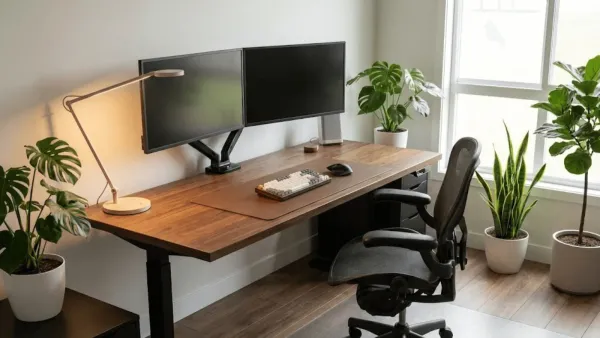
Your monitor's adjustability matters more than its refresh rate for long-term comfort and health. Neck pain, shoulder tension, and eye strain are far more common consequences of a poorly positioned monitor than any specification mismatch.
Height Adjustment
A height-adjustable stand lets you position the top of the screen at or slightly below eye level, which is the ergonomic standard. Without height adjustment, you are stuck using books, boxes, or monitor risers to achieve proper positioning. Many budget monitors skip height adjustment to save costs, which is one of the biggest practical compromises in the lower price range.
Tilt, Swivel, and Pivot
Tilt lets you angle the screen forward or backward. This is standard on almost all monitors and helps fine-tune the viewing angle. Swivel lets you rotate the monitor horizontally, which is useful for sharing your screen with a colleague sitting beside you. Pivot lets you rotate the monitor 90 degrees into portrait orientation, which is excellent for coding, reading long documents, and social media management.
VESA Mount Compatibility
VESA mounting allows you to attach the monitor to a desk-mounted arm or wall bracket. This frees up desk space, provides infinite positioning flexibility, and is generally the best ergonomic solution for any monitor setup. Most monitors support either 75x75mm or 100x100mm VESA patterns.
How to Set Up Your New Monitor for the Best Experience
Getting the hardware right is only half the equation. Proper setup ensures you get the best visual quality and comfort from day one.
Step 1: Position the monitor correctly. Place the screen at arm's length distance (50 to 70 cm). The top of the screen should be at or slightly below eye level. Tilt the screen slightly backward (about 10 to 20 degrees) so you are looking slightly downward at the center of the display.
Step 2: Adjust brightness. Your monitor should match the brightness of your surroundings. In a bright room with windows, increase brightness to 70-80%. In a dim room or at night, reduce it to 30-50%. Never work in a dark room with a bright screen, as the extreme contrast causes rapid eye fatigue.
Step 3: Calibrate color temperature. Most monitors default to a cool (bluish) color temperature around 6500K. For general use, this is fine. For eye comfort during extended sessions, shift to a warmer 5500-6000K setting. For creative work, use a hardware calibration tool or the monitor's built-in sRGB/Adobe RGB preset to ensure accurate color reproduction.
Step 4: Enable eye-care features. Turn on flicker-free mode (usually enabled by default) and activate low blue light mode if working during evening hours.
Step 5: Select the right input. If your system has DisplayPort, use it for the best quality. Use HDMI as a second choice. Avoid VGA unless there is no alternative.
Monitor Maintenance: Protecting Your Investment
Cleaning. Use a microfiber cloth dampened with distilled water. Never spray liquid directly on the screen. Avoid household cleaners, paper towels, and tissues, which can scratch the anti-glare coating.
Power management. Enable sleep mode after 10 to 15 minutes of inactivity. Modern monitors consume very little power in standby (under 0.5W), and allowing the panel to rest extends backlight lifespan.
Temperature control. Avoid placing monitors in direct sunlight or near heat sources. Excessive heat accelerates LED backlight degradation and can cause panel damage over time.
Cable management. Secure cables so they do not pull on ports during desk adjustment. Loose cables cause intermittent connections that can damage both the cable and the port.
Brand Guide: What Each Manufacturer Does Best
Understanding brand strengths helps narrow your search before you compare individual models.
|
Brand |
Strength |
Weakness |
Best For |
Browse at Swastik |
|
Value gaming monitors, wide range |
Build quality on budget models |
Budget and mid-range gaming | ||
|
Aggressive pricing, solid panels |
Limited premium options |
Best value across all segments | ||
|
Eye-care technology, color accuracy |
Higher pricing |
Office, creative work | ||
|
Build quality, warranty support |
Conservative features |
Business, professional | ||
|
Design, reliability |
Limited gaming range |
Office, general purpose | ||
|
Enterprise integration |
Limited consumer appeal |
Corporate environments | ||
|
Panel quality (self-manufactured) |
Availability in India |
Creative, office | ||
|
Curved panels, Quantum Dot |
Premium pricing |
Gaming, creative | ||